The following is a step by step guide, complete with tons of screenshots, that will show you how to install WordPress onto a web host like HostGator. Basically, what you’re going to see is the process I go through when someone orders a free WordPress installation. It is my hope that once you see how easy it is, you will order a HostGator plan using my link and install WordPress yourself, thereby saving me some work.
Step 1 – Order Web Hosting
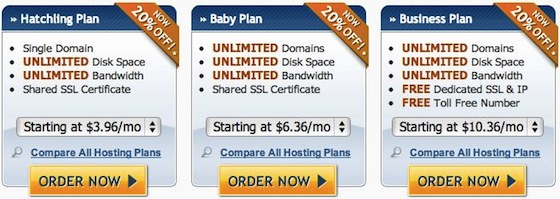
HostGator is my official web host and hosts all my blogs. They offer excellent service and I highly recommend them. HostGator hosting plans start at only $4.95 per month and they’re running a 20% off special so now would be a good time to order a plan if you haven’t done it yet. Use coupon code JohnChowRocks to get yours the first month of hosting for only 1 cent.
Step 2 – Wait for the HostGator Email
Once you order your plan, HostGator will send you an email with your new account information. The email looks something like this.
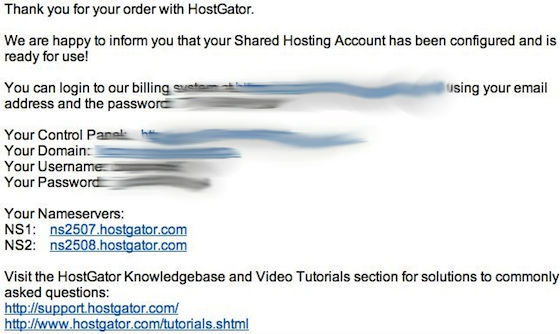
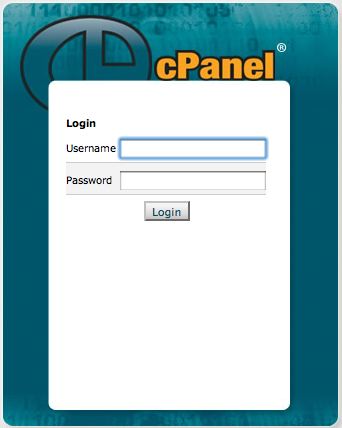
What you need to do is click on the link to your control panel. This will bring up the cPanel login screen. Enter the username and password HostGator gave you and it will log you into your control panel.
Step 3 – The Control Panel
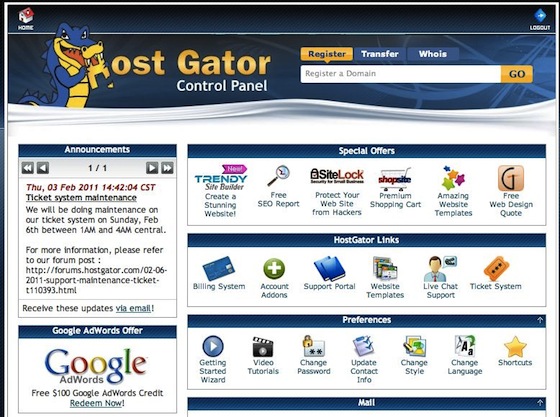
The HostGator control panel is where you redeem your $100 Google AdWord credit. The page has a lot of icons but don’t let that intimidate you. There’s only one icon we’re interested in. Scroll down towards the bottom until you get to the software/Services panel.
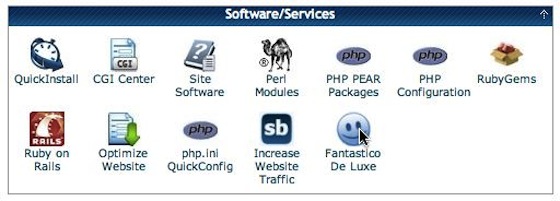
From the software/Services panel, click the “Fantastico De Luxe” icon.
Step 4 – Using Fantastico De Luxe
You will see a long list of software that Fantastico can automatically install. Looks under the Blogs category and click the link for WordPress.
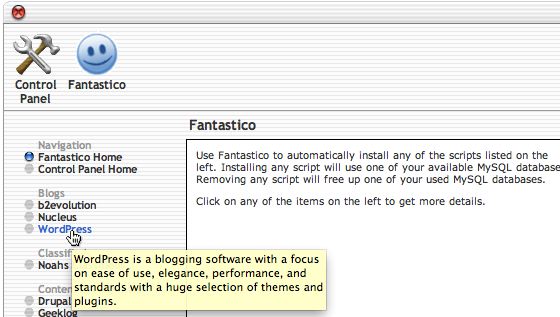
Now click the “New Installation” link.
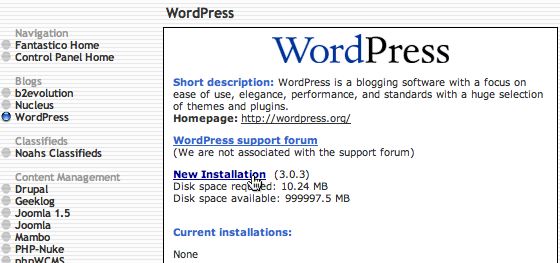
If you want to install your blog in the root directory (yourname.com) leave the “Install on directory” blank. If you want to install your blog on a subfolder (yourname.com/subfolder), then enter a name for the “Install on directory” field. Most bloggers install their blogs on the root directory.
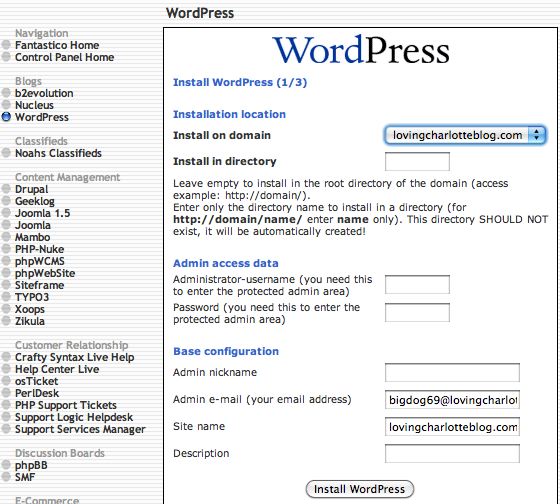
Choose an admin username and password for your new blog and enter them into the corresponding fields. You should write the username and password down so you won’t forget it. This information is what you’ll use to log into your new blog. Fill in the remaining information and then click “Install WordPress.” The next screen will appear after a few seconds.
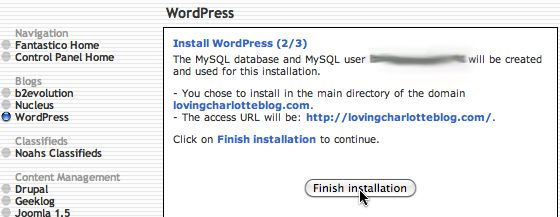
Click the “Finish installation” button. Now, enter your blog’s URL and have a look at your new WordPress blog!
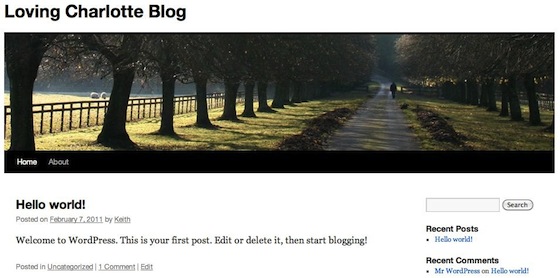
Step 5 – Updating WordPress
Because WordPress is constantly improving, the version that Fantastico installs may not be the latest. Fantastico is usually a few weeks behind on getting the latest version. Fortunately, updating WordPress is very easy. Log into your WordPress control panel by entering http://YourBlogURL.com/wp-admin/.
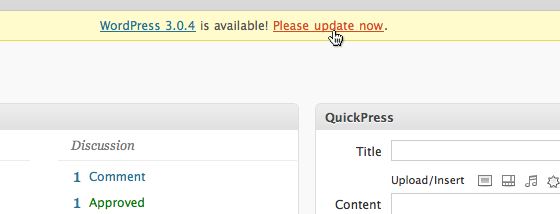
You will see a yellow bar running across the top telling you that a new WordPress version is available. Click the “Please update now” link. This will take you to the update page. Click the “Update Automatically” button.
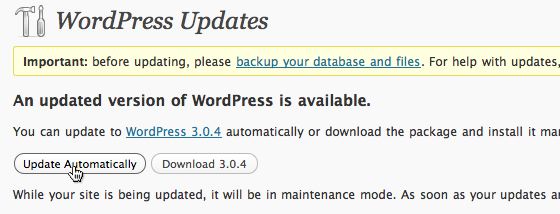
When you click the auto update button, WordPress will download the latest version of the software from WordPress.org and automatically update your blog. This only works on web hosts that support the auto update feature. If your host doesn’t support auto update, then you’ll have to open up the FTP program and update WordPress manually. But that’s a whole other blog post! My advice: stick with HostGator.
Step 6 – Set The Permalink
On the right side menu, go to “Settings” and choose “Permalinks.” From here you’ll be able to control how WordPress displays its URL. The default setting is not very search engine friendly so you’ll want to change it.
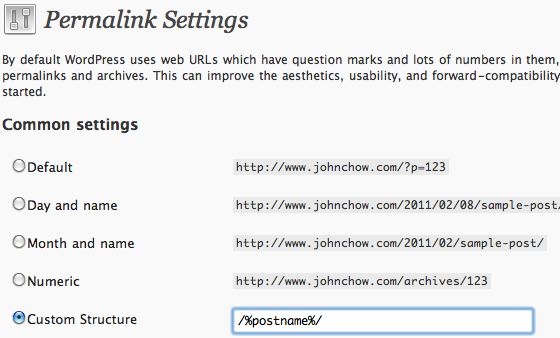
For the free WordPress installation service, I use a custom /%postname%/ structure that shows the blog URL plus title of the blog post. Instead of yourblog.com/?p=123, the URL will be yourblog.com/your-post-title. This is much more search engine friendly.
Step 7 – Allow Search Engines to See You
Again on the right side menu, go to “Settings” and choose “Privacy.”
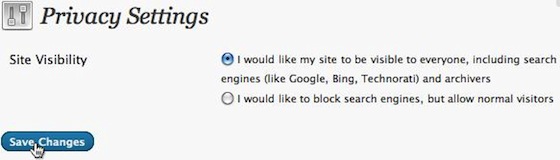
By default, WordPress blocks off your blog from the search engines. Obviously, this is not ideal since we want Google to be able to find us. Change the value to make your blog visible to everyone including the search engines then click the save button.
Step 8 – Upgrade The Plugins
Click the Plugins link on the left side of the menu.
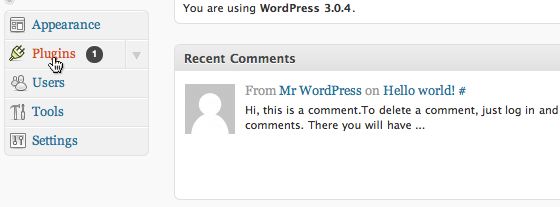
WordPress will let you know if there are any updates available for the installed plugins. You can update to the latest version by clicking the “upgrade automatically” link. Again, this only works with web host that support this feature.
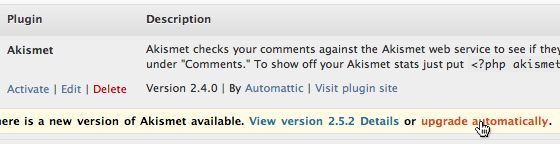
Step 9 – Adding New Plugins
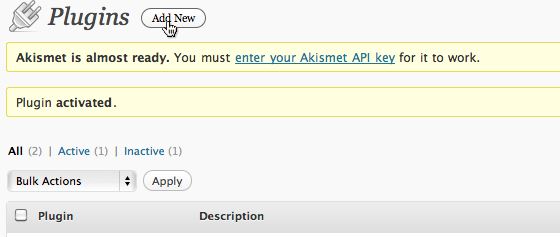
You can add pretty much any WordPress plugins directly from your WP control panel. Under the Plugins screen, click the “Add New” button.
Search for the Plugin you wish to install. In this case, we’re looking for the All In One SEO Pack.
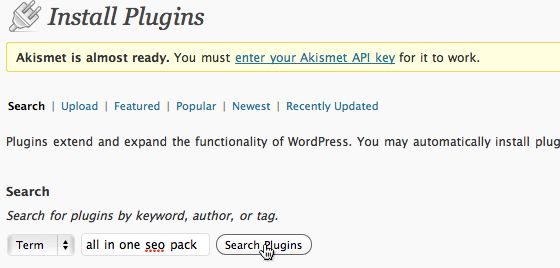
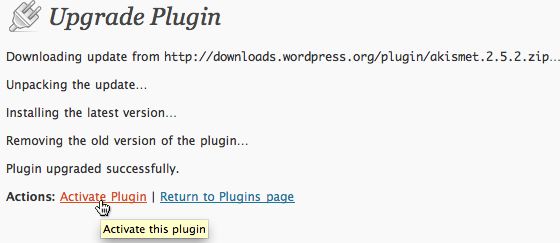
WordPress will display a list of Plugins matching the search term. Find the Plugin you’re looking for and click the “Install Now” link. The plugin will automatically install. Click “Activate Plugin” to turn it on.
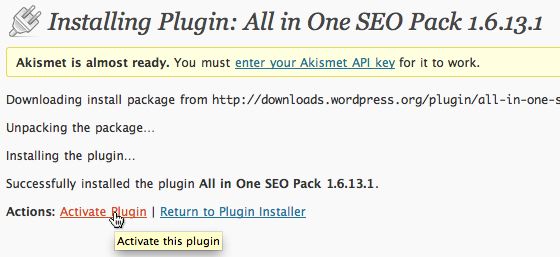
Repeat the above steps for any other plugins you want to install. I guess I shouldn’t have to tell that this only works with web hosts that support the auto install feature.
Step 10 – Write Your First Blog Post

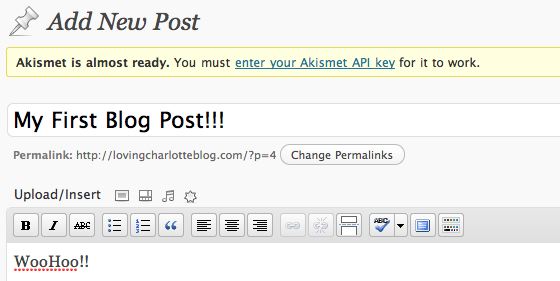
Congrats! You have successfully installed and set up your own WordPress blog. Now go write your first blog post!
If you’re still unsure about installing WordPress by yourself after reading this, then go ahead and order the free WordPress installation service. However, I do encourage you to try installing WordPress by yourself. Don’t worry about screwing up. You can always order the free WordPress installation service and have me fix it.
Did you enjoy this post? Get John Chow Dot Com updates via email...
Stay up to date with all of John Chow’s tips for making money online and blog posts by subscribing via email. Your email will be kept private and never shared with anyone.


One of the most common complaint (or excuse) I hear from potential new bloggers is they don’t know how to install WordPress. Terms like FTP and CPanel are like a foreign language and setting up a database might as well be setting up the space shuttle for a launch. Because of the technology barrier, many would-be bloggers never start their blogs...
{ 135 comments }
Thanks for this post, it couldn’t have been posted at a better time. I’m planning on moving to HostGator (As you saw in my tweet I just sent to you).
However I won’t be installing a brand new wordpress site, but I get a better understanding of how the process works over at HostGator.
Quote from you:
“they’re running a 20% off special so now would be a good time to order a plan if you haven’t done it yet. Use coupon code JohnChowRocks to get yours the first month of hosting for only 1 cent.”
Will I have to choose between 20% of or to get the first month for only 1 cent. Or do I get both? Just curious.
Thanks for the post.
//Alexander.
You get both. The first month is 1 cent and then it’s 20% off after that.
Is the $5/month Business plan for the first month only or for every month after too?
It’s every month and the first month will be 1 cent if you use my coupon code.
That’s a really great deal! I don’t think it’s possible to find high quality hosting for cheaper. Just one of the many benefits of being a John Chow reader!
John,
do you use your own coupon code?
Wow! So many opportunities for readers of John Chow’s blog!
I do not think that price for business plan is only $5.00.
Hey John,
This is a very helpful post for anybody who hasn’t installed a Word Press yet. It’s also very clever of you to show people how to do it themselves and yet order the hosting through your link.
Everybody should definitely do that and will want to do it after having learned so much reading your post.
I hope the sign up clock from your link at Host Gator is already being used as a fan since it’s turning so fast.
I plan on making a guide as well on my blog. I know it’ll drive a ton of traffic.
Sure, That’s a good idea
Here John is getting traffic and along with that earning money as well.
If you want to write about starting blog than do not forget to signup for affiliate of hosting as well.
Just don’t copy what John did here.
Hostgator has been pretty reliable. I have been using their service for years without any problems.
Never used them, but I’m an affiliate. Have heard good things about them though.
Just to let you all know, I got 80% off for a 3 year subscription when I signed up on Black Friday 2010. A super great deal that was and I never regretted!
very few people able to get 80% off on black friday sale.
You were lucky.
WHAT?!
80% of is almost like free hostin lol. I wonder how many they gave that to. I wish I had that beut unfortunately they will probably not offer that again before I sign up with them… =(
//Alexander.
Man.. You got 3 years of hosting for the cost of ± 6 months.. Great
im agree with you
you gave your services away? good for newbies!
I never had a problem installing wordpress when I got started blogging but this is definitely a great guide to help newcomers.
Yup, me either. Installing wordpress inside cpanel was easy peesy for me. Dead simple. I took a stopwatch and timed myself. Less than 2mins!
this is quite tough to those people who do not believe in trial and error method.
Or to those who are lazy enough to install wordpress manually.
2 minutes? It takes about 30 seconds.
(y)
Seriously? Why do you keep on leaving these comments that are pretty much totally useless? I keep on seeing your comments everywhere saying “good post” and things like that, but this was really just pure spam.
Try leaving something of value, or maybe ask some questions or answer some. At least make it more than one letter long….
//Alexander.
What the heck!!!
YACS (Yet Another Comment Spammer). How come John approve these type of comments?
For sure that’s a long post !!
There is a good chance it will help some newcomers to get started.
@Dukeo, John is always here to help out the newbies. You can be sure of that!
yes we all professional bloggers love new bie.
Because in blog industry new bie is always ready to pay to get the money making mantra or guidance.
nice information that always is john sharing
Great info for the newbies, I’m sure they will appreciate this.
Yeah, I can see how this would be truly invaluable for anyone just starting out.
@Ian, especially those that have no idea what Wordpress is.
Yes there are thousands of articles and video available for the wordpress installation.
Today we got another one with the real quality.
A great blog post for beginners.
It’s a great post for beginners but also for anybody who hasn’t installed WP for a while.
Unless you install WP quite often it’s always good to review the process.
i must say that im agree with you
just curious…
how many people order this wp setup from you per month?
He said that he got overwhelmed with these requests. Means he might have got tons of setup requests.
That’s gives him a good amount from HostGator!
I am sure he is getting good response that’s whywe got another post of this series.
John should have started this before two to three years.
I have to agree that i have the same curiosity
For those of you who have not used Wordpress – stop using whatever else you are using and make the switch.
It is simply a great platform and John does an excellent job of showing you how to install it.
Good luck with your blogging
I prefer wordpress. I’ve never used any other blogging platform. But most people use wordpress and the community support is great.
yeah, buddy! definitely agree with you
But it seems like you are not using Wordpress as well. So why are you asking others to use it when you do not use it?
if you are targetting to make blog than wordpress is your cup of tea.
For adsense I prefer html based website because adsense love that.
i didnt know that
At the beginning I used Weebly.com and Blogger.com but that was really stupid of me. Mainly because they were so limited and I had to follow the guidelines and terms for each host. Also, they had not ability to provide what I wanted in the long run.
//Alexander.
Agreed. I tried many other blogging systems & Wordpress is the only one that does everything exactly how I want it.
That’s a great post that helped me with my WordPress Installation. Thx John.
Now, I’m off to the races to get the other plugins installed!
BTW, WordPress does seem quite a bit easier to use than Joomla, but I’m going to leave my main blog as Joomla given the SEO that I’ve done.
Wordpress is a blogging platform and a basic CMS. Joomla is a more complex CMS that offers more customization and features not needed on a blog.
wordpress won the battle because this is easy to use.
Too many plugins.
Great supportive community and above all maximum top bloggers are using it.
Hostgator + wordpress. The perfect combination.
Pretty much any time I hear someone using anything else I do a facepalm.
Yeah, I plan to use hostgator once my service expires with my current host.
Great choice. I just moved over from BlueHost shared to HostGator VPS. I couldn’t wait even though I had a lot of time left on BH. At least I can host some mini sites in my old BH account.
@Ian, aren’t you using ThePlanet for your PPC blog?
I see that you are using Global Net Access, LLC. So why do you want to choose Hostgator over that?
yeah you have mentioned earlier that you paid for one year to your current hosting providers.
I’m not using HostGarot, yet. So feel free to do a facepalm.
However I am going to switch to hostgator within a week or so, just gotta do some things first with the website.
//Alexander.
Hi John! Thanks for sharing this little guide how to install WP, very well explained and very useful for newbies
I agree
This guide from John gives a more detailed and well explained one, than the guide at wordpress.org
Great post! Wordpress has come a long way over the years. Now-a-days Wordpress is the ideal content management system for both beginner and professional bloggers. It’s quick and easy to setup and has lots of plugins.
yes thanks should go to the wordpress supportive community
simplicity and open source is quite important factor for the development of wordpress.
This is the easiest thing to do in the world period
I Love WP and creators of WP
I agree. If someone struggles with this, i wonder how they even found the power button for their computer…
The only problem with using Fantastico is that you do not get the option of including the WWW in the url. It only creates something like http://yourdomainname.com/
Is there an easy way of changing the redirect after the install?
Dave
To do that go into your wordpress installation and then go to your General Settings under the Settings menu option.
Below the Wordpress Address (URL) which has your blog URL eg mine is http://auctiontrainingvideos.com there is a Site address (URL) type in your URL that you want which in my case will be http://www.auctiontrainingvideos.com
Hope this helps.
Lance
Thanks Lance! That was almost too easy.
Dave
No problem, I also have a list of really decent plugins that I use if you ever want them. Just struggling with streaming videos from amazon using flv or similiar plugins.
Lance
Word Press is one of the most versatile content-management systems out on the web today, and it’s very user-friendly.
I agree! I’ve been using WordPress to power my blog for over a year now and couldnt be more impressed. WordPress rocks!
Good post- John’s probably knee deep in installation requests and he needed a rest.
How do you know ?
How did you get such internal information ?
If I told you, I’d have to kill you!
;op
KILL! KILL! KILL! KILL!
Quote:
“John’s probably knee deep in installation”
He meant that he thinks John is getting tired of all the work with installing wordpress websites. Since he used the word ‘probably’.
//Alexander.
Hi John,
I see you used me as your example!
Thanks for setting me up, I see how WP is easy to use now!
I better get some content out there!
Good luck on your new blog, Keith!
Have a happy blogging!
Really cool stuff! Now you can have John install your new blog but can also follow along via this guide so you know how to do it yourself!
yes now if you want to do it yourself than simply follow this guideline or ask john to do it for you.
It’s great you shared this how to’s in creating a wordpress blog account. This will not only be useful for those who want to create their account in the said blog site but also for those who already have an existing account and want to further improve its overall appearance.
yes this is simply for the new comer and also for those who are using wordpress for a while.
Nice guide. Thanks for this information. I think it is really great for newbies to get a guide like this. Wordpress is a cms but it isn´t easy to install without any html, mysql and php skills.
Cheers,
Manni
I do not think that for wordpress installation and running it you need any such kind of skill.
You can get thousands of theme and those are quite easy to install.
How easy it is to install WP!
This is the best wp installation guide.
cheers!
@Fairooz, it is indeed very easy.
Yes it is verry easy to install wordpress on hostgator. However the crappier host you get, the harder it will most likely be. I once had a host that required to upload everything with FTP, and the FTP connection failed all the time so it took like 5 tries to get all the files up.
//Alexander.
this one is simply great post and I am sure this will remove all the confusion about the wordpress installation.
Hello John…
Thanks for the giving proper steps of installing the Wordpress. I trying since very long time to installing the Wordpress but all time i have the eeror on installing but now successfully installing the wordpress.
Thanks.
Amit
Awesome post John now that is some work you have done.
yea(y), john is always sharing great information
The funny thing is that this post seems so simple, but for newbies it is VERY intimidating. I’m sure John is doing well with signups on this one and rightfully so!
nice tutorial john
i must say, this is a great information
I love this blog. It really motivated me when I created my own blog.
Same. I have even changed my blog a bit to how Chow’s blog looks. With font and text size and text color. I have also gotten a lot of ideas to write about.
//Alexander.
Tremendous post. I guess you spent a lot of time for doing this. Installing Wordpress isn’t hard, it gets done in basically 3 steps. thanks.
No, it definitely isn’t that hard. It’s pretty easy even for noobs.
Well its easy when you know how to do it.
I know people who offered $25 for a simple installation of wordpress.
Where was this handy tool 10 months ago when I barely knew how to turn on my computer. Well done, looking forward to your next instructional post.
It was there.. You just hadn’t noticed it.
I suppose that when you barely knew how to turn a computer on there was already pleanty of guides for this, you just couldn’t find them.
//Alexander.
Nice long post that explains everything. How could anyone go wrong now?
Hi,
This is a great post explaining indepth how to install wordpress. You can’t go wrong?
Guys, use wordpress if you have not? Google love them to death..
Care to explain what you wanna say?
Cool; this is what I have been doing the last 6 months in Blogshop: Using a Hostgator affiliate, installing Wordpress and teaching basic dashboard techniques, all with screenshots, too! Except I teach it in a workshop environment, love. But this is a great guide. One note: Once you install Wordpress, you don’t always see “Hello World” immediately. Nameservers have to propagate and it can take anywhere from a few minutes to 72 hours, though they usually link up in about 2 hours in my area (Santa Fe, NM).
I have installed word press and created a website. My problem is I create it as my domain/blog how do I transfer it to domain name without losing all the links.
They offer free website transfer within 30 days when you sign up or upgrade. You can find it on their website. If you created a website and just want to switch the domain name then I do not know how.
//Alexander.
Sorry can you I forgot to ask you Do you do this kind of work and if so what would you charged to do it for me.
Paul
Simply awesome..
This will help setting up the blog for a lot of newbies.
I am already using word press formy blog. This post is really helpful.
But John I want to change my word press hosting company.will you please tell me that how can I do that
Do backups of your database and files, then transfer the to the new hosting. If you purchase hosting at hostgator then they will do this for free one time for you within 30 days after purchase. Make sure that your current host is on a cPanel, otherwise it might not work.
//Alexander.
thank you …..
this would really help………………….
yes this is really help.
Simple and detailed walkthrough John.
One of the best things that has happened since sliced bread in my book is Wordpress considering that it is free yet so powerful and easy to use as well as manage plus secure.
Quite beautiful actually.
Cheers.
thank you for the tips
Using cPanel is the easier way to Install WordPress….
I’d also recommend Hostgator. Have been using them for some years without problems.
Even as a newbie, installing wordpress was a breeze.
It was the rest of it that was a pain – choosing a theme, plugins, config, etc.
And then some idiot comes and hacks your site.
Mine got hacked twice, the hackers replaced my index file, but I managed by reinstalling the theme again. Its very annoying and wordpress should look into this hacking problems.
Very clear explanation of WP installation.
Thanks for tutorial.
Permalink question:
I have a blog that has been setup since April of last year and I have nearly 100 posts. When I followed some time back the instructions you have on changing permalinks it caused me problems.
Indeed it changed all my permalinks however, none of my category or archive links from previous posts would work so I had to revert back to the default.
Does that mean this procedure is only advisable when creating a new blog with no prior posts?
Thanks for your step-by-step instructions to install and set up WP.
Do you have simple instructions on how to set up a 2nd blog site for a HostGator “Baby Account”? Do you need to install WP for each blog? I can’t find any good simple tutorials showing how to set up multiple blogs on the same hostgator account. Your help would be appreciated.
I have a hostgator account and if I want to start another blog you have to do one of 2 things, if it is in the same line of topic then you can install another wordpress blog but this is not advised as the domain name wont match the topic.
Only do this if you setup a subdomain eg. for mine if I want to do a powersellerniche product I can setup a sub-domain called powersellerniche.auctiontrainingvideos.com because I already own the Auction Training Videos domain. Then do a wordpress install for the subdomain targeting ebay Powerseller’s
To do it the correct way buy another domain name and create a Addon domain under the domains option (the baby account offers unlimited domains).
1. Once you have added the domain then go back to Fantastico, select Wordpress installation.
2. Select the new domain that you want to install wordpress for from the drop down box, add in the information for the installation and that should be it.
The procedure is the same as above you just have to add the domain name to your account.
Lance
John:
Thank you so much for providing these instructions. I followed them step-by-step and now have my very first website up and running. Just one question regarding the SEO Plug-In: When I went to activate the All In One SEO plug-in I received a message in a big red bar that read, “All in One SEO Pack must be configured.” And directed me to go to the admin page to enable and configure the plug-in. I’m very new to this and have no idea how to do that. (When I went to the admin page all I saw were a bunch of ads.) Suggestions?
Thanks so much for this! I bought a package from hostgator during the thanksgiving sale but haven’t been able to figure this out on my own or through any other tutorials online! I did this in less than ten minutes (had to log on to talk to someone to figure out how to change the domain name). Thanks again!
I agree that using wordpress and hostgator is a winning combination. It’s super easy to install and get things up and running in 10 minutes or less. I haven’t had any trouble with hostgator yet.
~Kyle Logue
Make Money Blogging
I have doubt with wordpress what are major plugins we have to use
can i get any free wordpress plugins.
excellent